Skip to content
Menu

Vodafone Wi-Fi: change DNS on your router

TVCrown may not work on Vodafone until Google DNS is set on the Power Hub router.

Vodafone Power Hub — Google DNS

  1. Connect to Vodafone Wi-Fi and open http://192.168.1.1.
  2. Log in, open the menu, and switch from Basic Mode to Expert Mode.
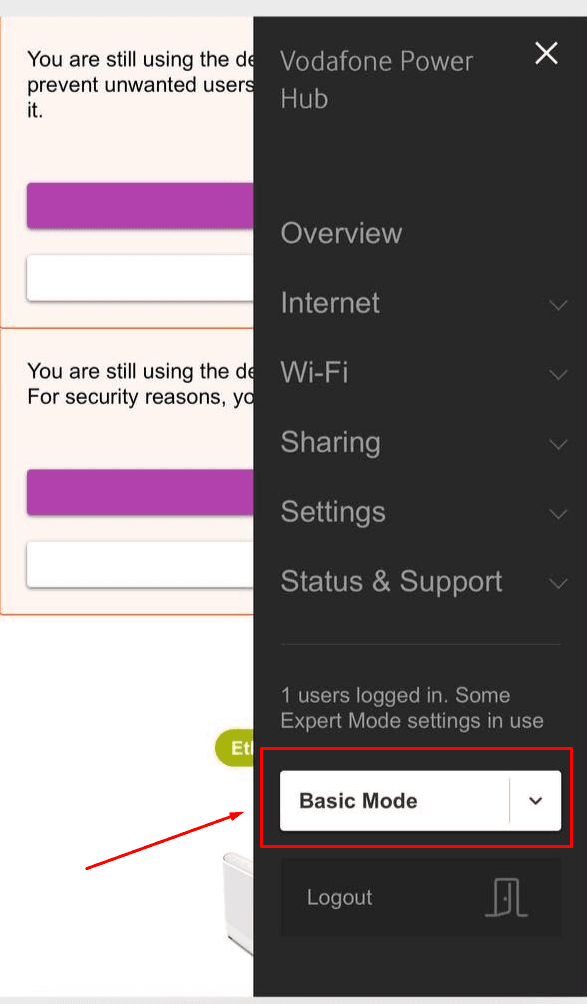
    Vodafone Power Hub menu with the Basic Mode dropdown highlighted. Switch this to Expert Mode.
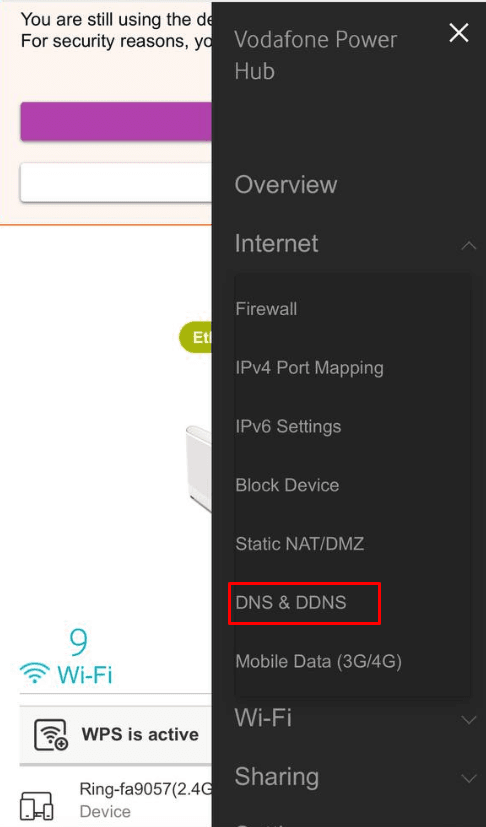
  3. Expand Internet, then tap DNS & DDNS.
    Internet menu expanded with DNS & DDNS highlighted.
  4. Select Manually.
  5. Enter Primary DNS 8.8.8.8 and Secondary DNS 8.8.4.4.
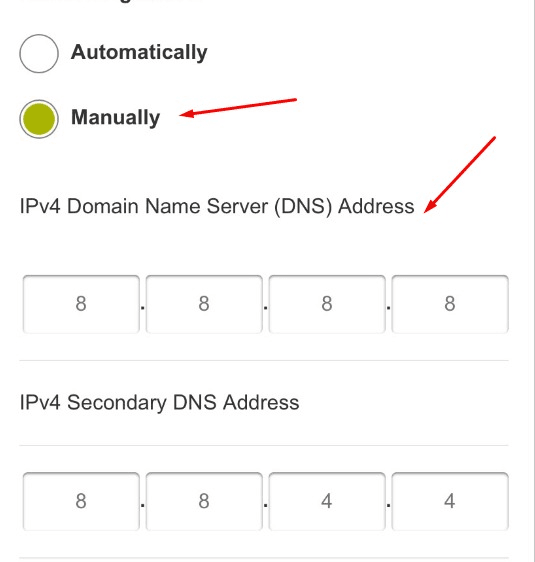
    Manually selected with Google DNS 8.8.8.8 and 8.8.4.4 entered.
  6. Scroll down and tap Save or Apply.
  7. Restart the streaming app and test.

Download the original PDF

When to contact support

If you have set Google DNS, restarted the app, and TVCrown still does not load on Vodafone, contact support with your username and a note that you are on Vodafone.

Support

Still need help?

Can't find the solution? Our support team can help.

When you contact support, include:

  • Your username and password
  • The device you are using (for example Fire Stick, Samsung TV, or phone)
  • The app you are using (TVCrown TiviMate, TVCrown app, or another app)
  • The exact error code, if you see one
  • A screenshot if possible
  • Whether a VPN is turned on
  • Whether the issue affects one channel or all channels

Or message us directly